
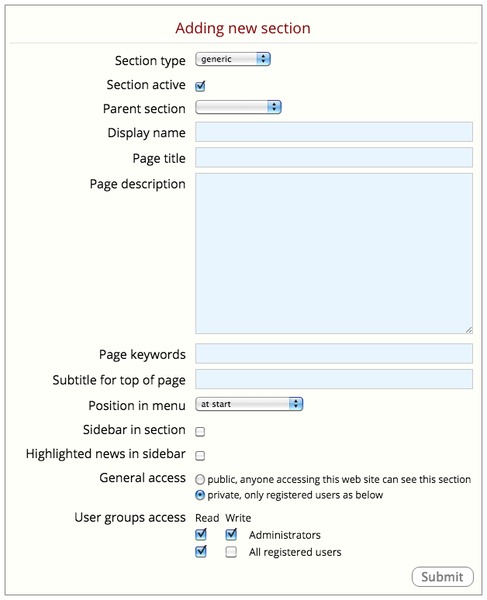
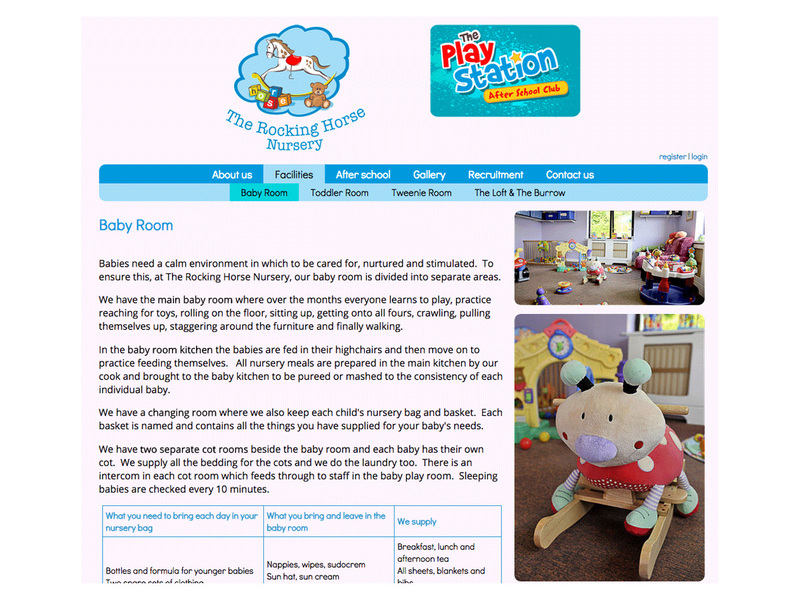
blank—use when a section has no content of its own except its subsections
Example—The Rocking Horse Nursery
blog—writing about anything that adds value to your company, for your audiences...
Example—blog
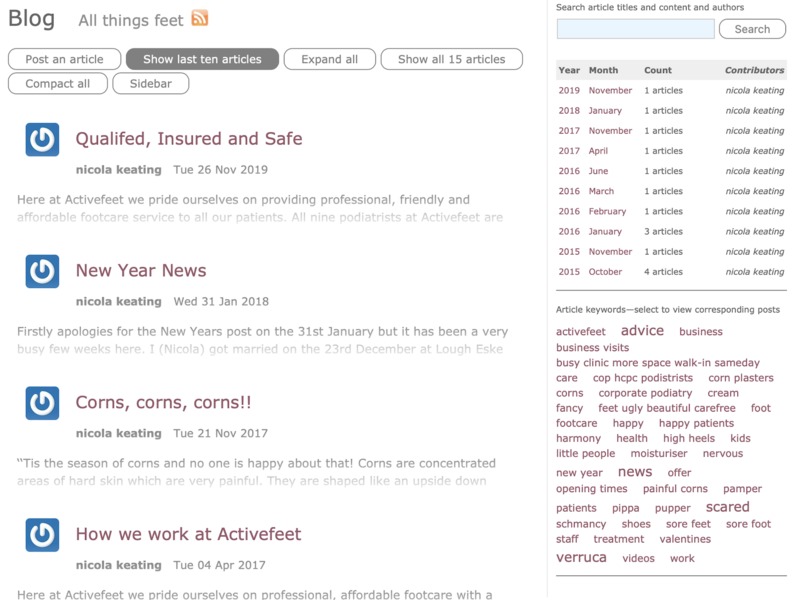
- synopsis of each blog item
- monthly statistics
- ability to search
- tag cloud of key terms
Blog post
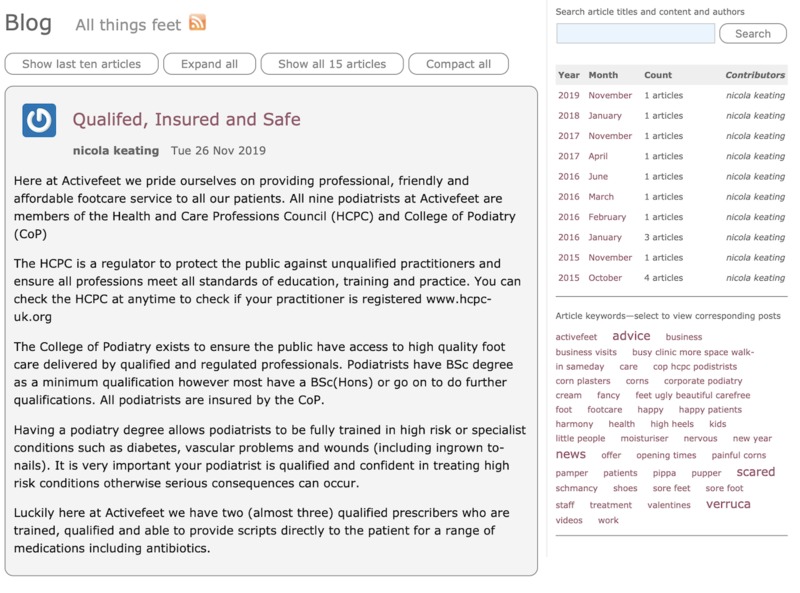
- select title to view blog and comments
- administrators can change the privileges of a trusted registered user to enable them to write a blog and comment on a blog item
- administrators are alerted when a comment so can answer, change or delete it
Form to add a blog post
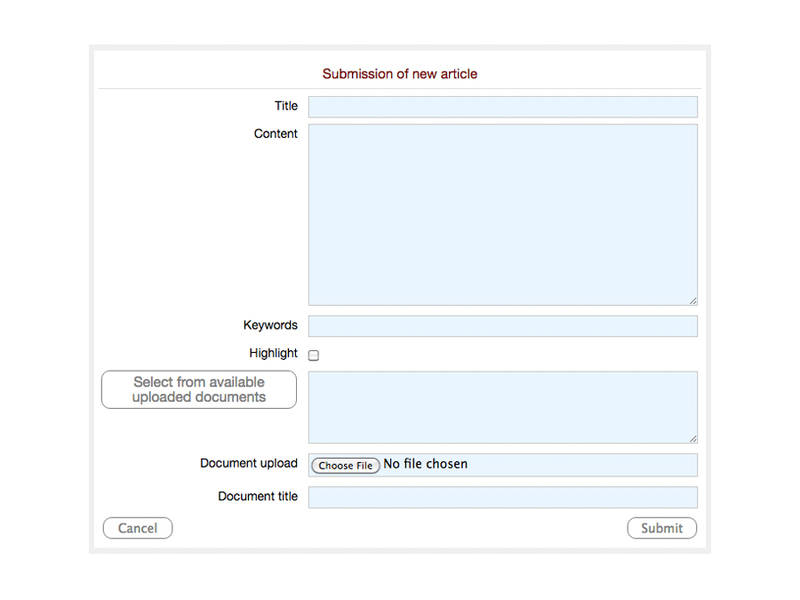
- add title, content and key terms (for use in tag cloud)
- check highlight if blog is to be displayed on sidebar
- select a file from site's private document store
- or add a new document or image
events—displays a calendar of events and visitors can step through each month
Example—calendar
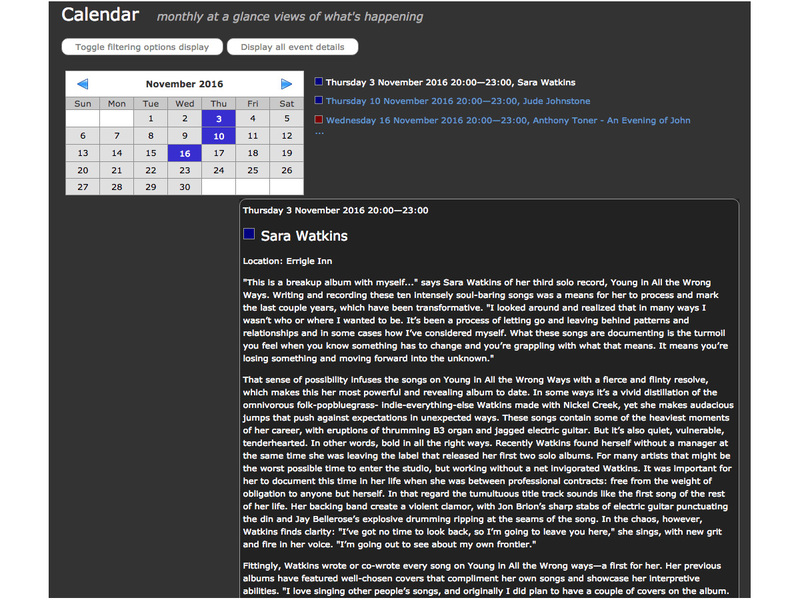
- view current month and events
- select event for more details
- view other month's events
- users can register
Form to add an event
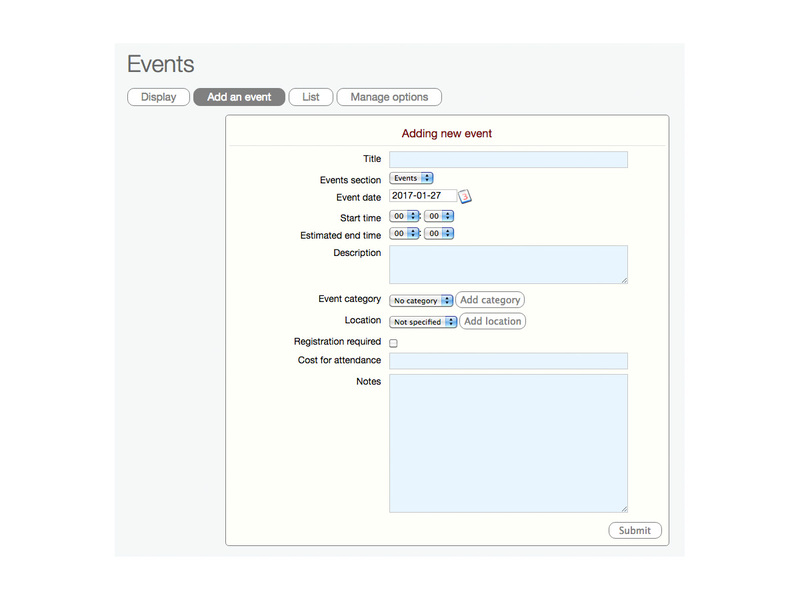
- provide event details and cost
- select date from calendar
- start and end times from dropdowns
- select the category and location
- request registration—default is none
Add event categories and locations
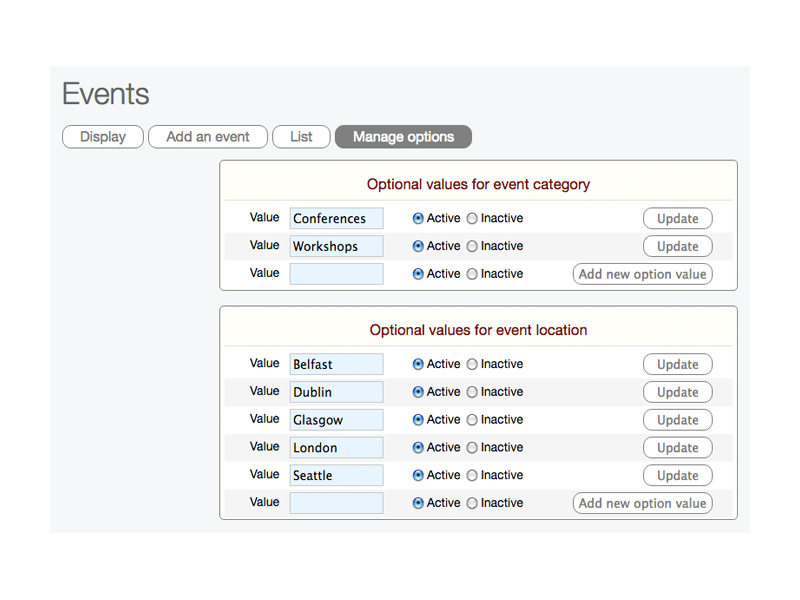
- pre-define category (type of event) and location for easy selection in dropdown menu when adding an event
- if necessary make inactive—so does not appear in Add blog post dropdown menu
gallery—displays a gallery of photos as thumbnails, selecting a photo starts a slideshow
Example—galleries
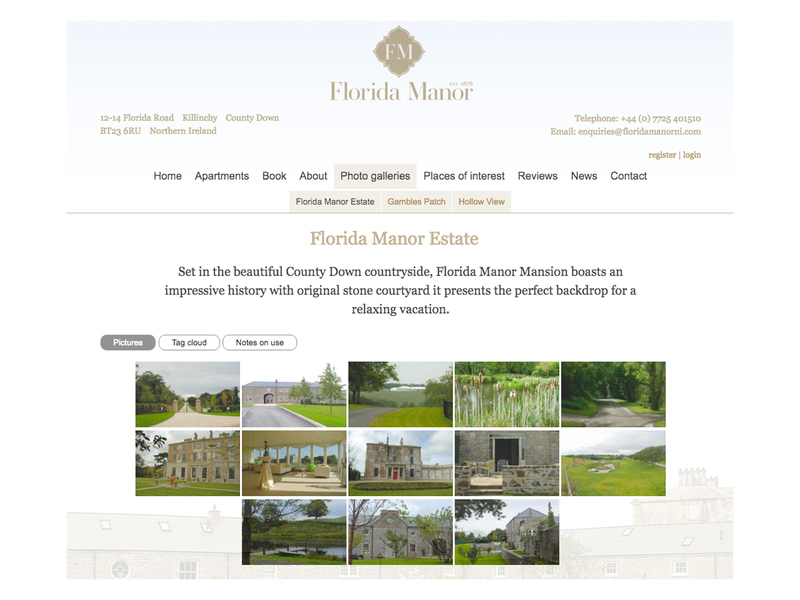
- initially displayed as thumbnails
- all photos can be categorised
- select key term from tag cloud to see selection
- select a photo and view slideshow
Form to add a photo within a gallery
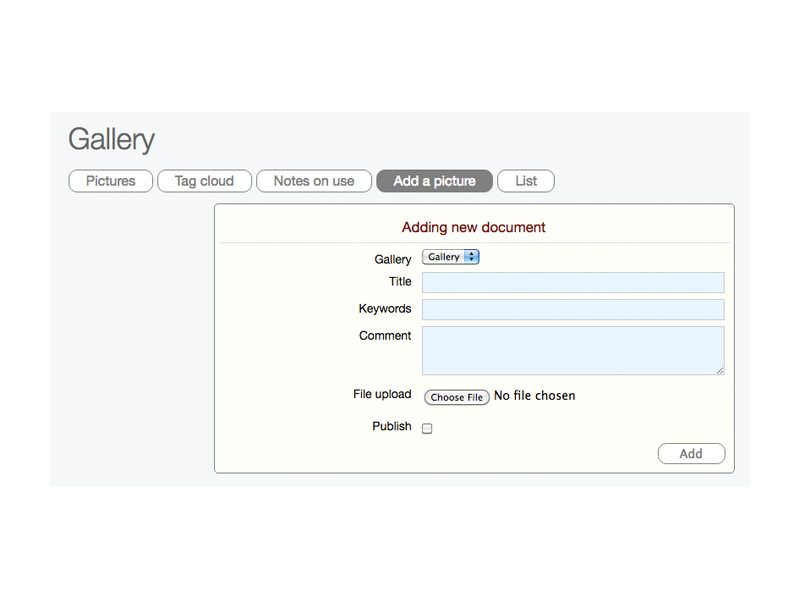
- if multiple galleries on the site, select the gallery where the photo will be displayed
- specify title and comment—visible when photo displayed in slideshow
- add key terms relating to the photo—seen in tag cloud
- upload photo—small, normal and large photos are created
- all photos optimised for the web
generic—used if no other section type fits your content layout
Example—generic
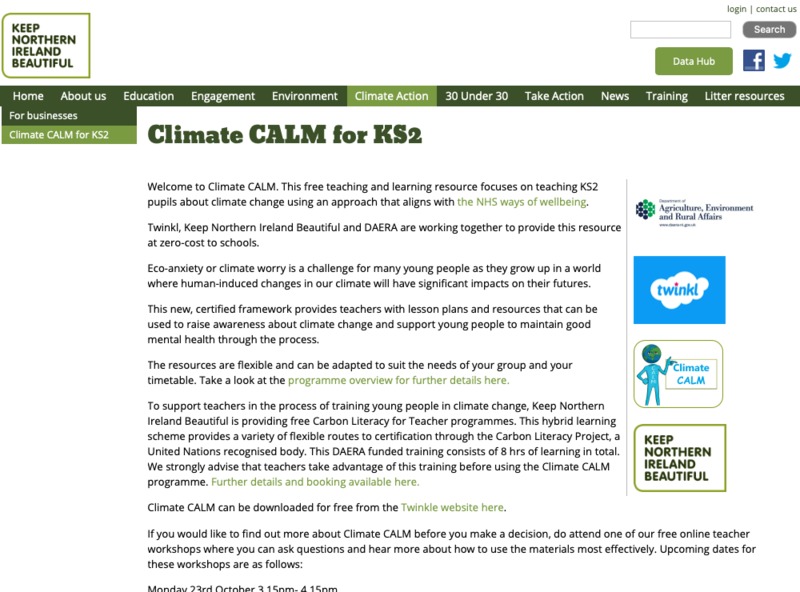
- displays text, links and images
- if selected, sidebar is included—can display news and blog snippets
Add content using the editor window
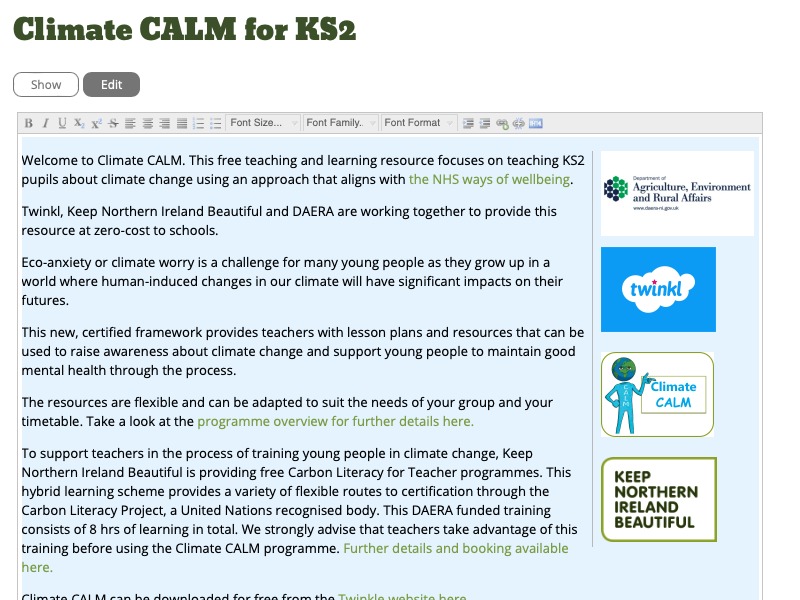
- use editor window—familiar formatting options available
- add and remove links to documents
- add images
- use Font format to select the site's headings styles
- override site's styles with formatting options
- view and edit the HTML directly
newsfeeds—displays relevant news from other news sites on your site
Example—newsfeed
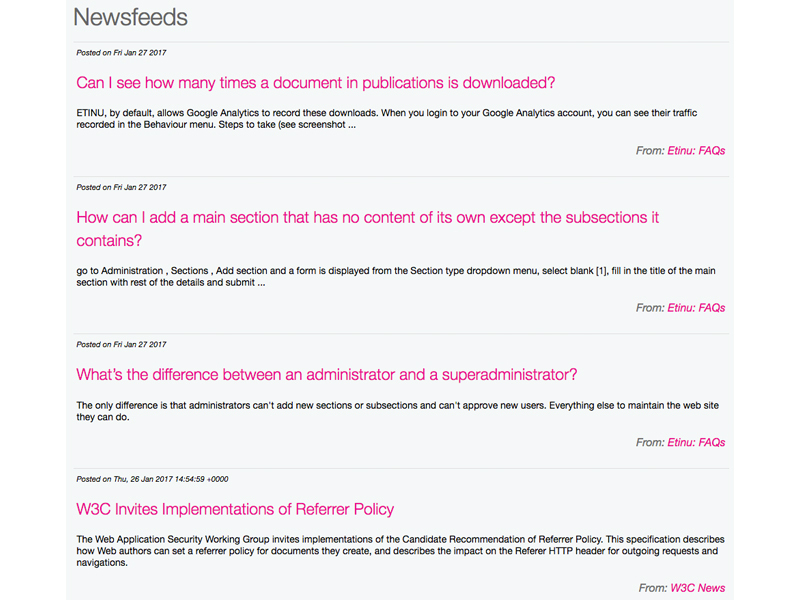
- view title and news snippets from other sites
- selecting title displays full news item
Add newsfeed sites
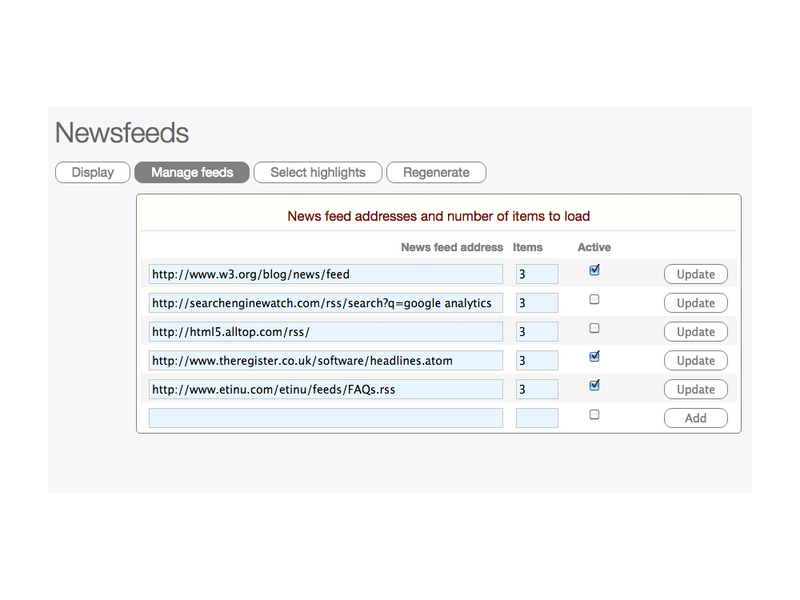
- add the site's newsfeed web address
- choose the number of items to be displayed from each news feed
- select the newsfeeds that are to be active
Select news items to display in sidebar
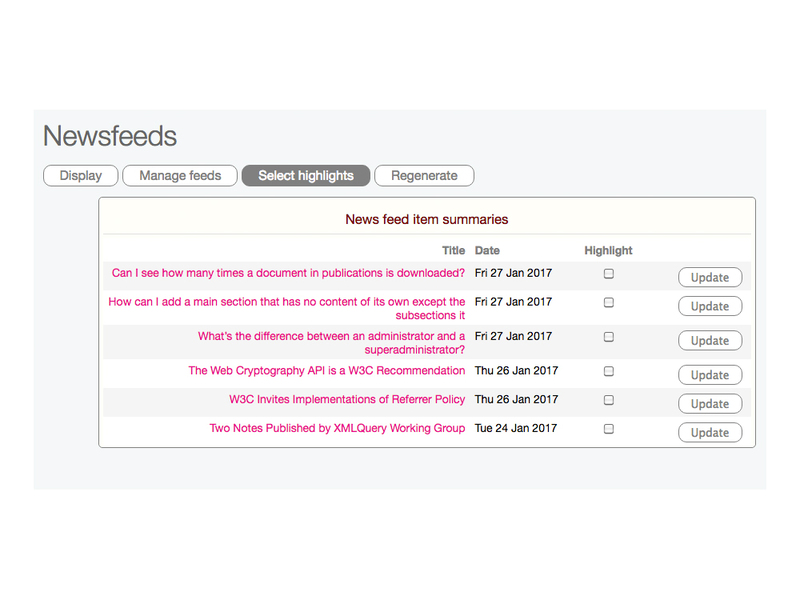
- newsfeed items titles and date published displayed for each newsfeed
- select the news item to be highlighted on a sidebar
- sidebar displays the title and a news snippet
newsitems—displays timed content, when an expiry date is reached, it goes into an archive
Example—newsitems
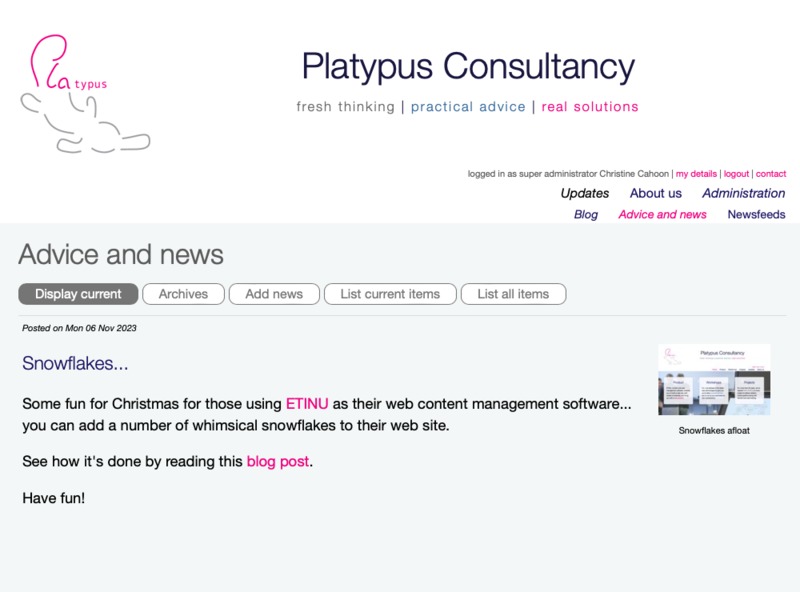
- displays the current news items with post date
- documents and photos are added and displayed
- Archive displays past news items
Add a newsitem
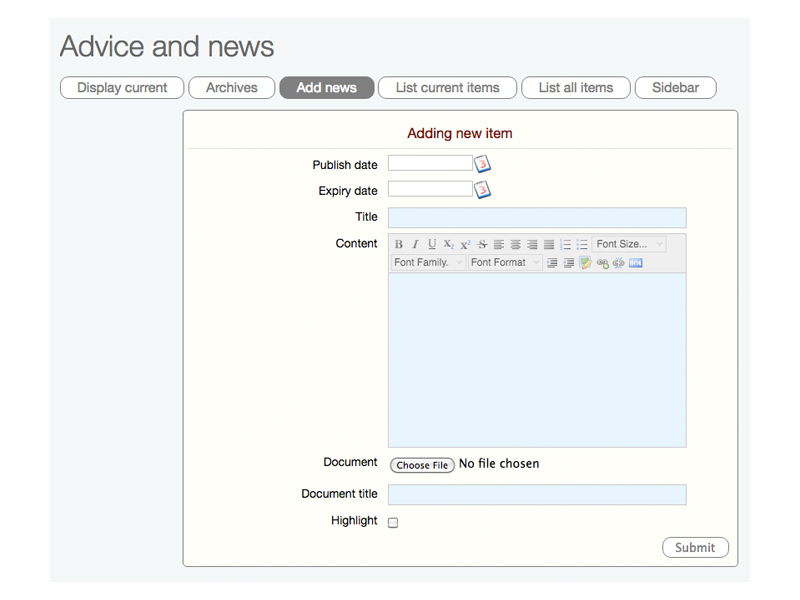
- publish and expiry dates are selected
- title and content (using editor window to format as desired)
- add new document or image using the Choose file option
- specify link to image in document store, by using Add image icon in editor menu
- select Highlight to display news item on a sidebar
persons—displays staff details such as name, role, contact details, biographical info
Example—persons
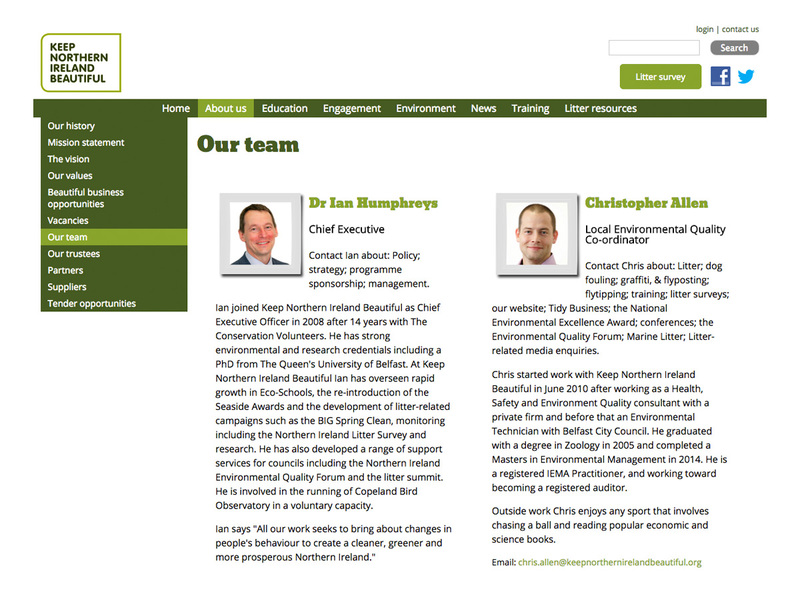
- displays the photos and staff details
- if provided, location, email addresses, Twitter and Skype handle are marked up
- when each selected, the appropriate application on the user's machine will start
Form to add a person's details
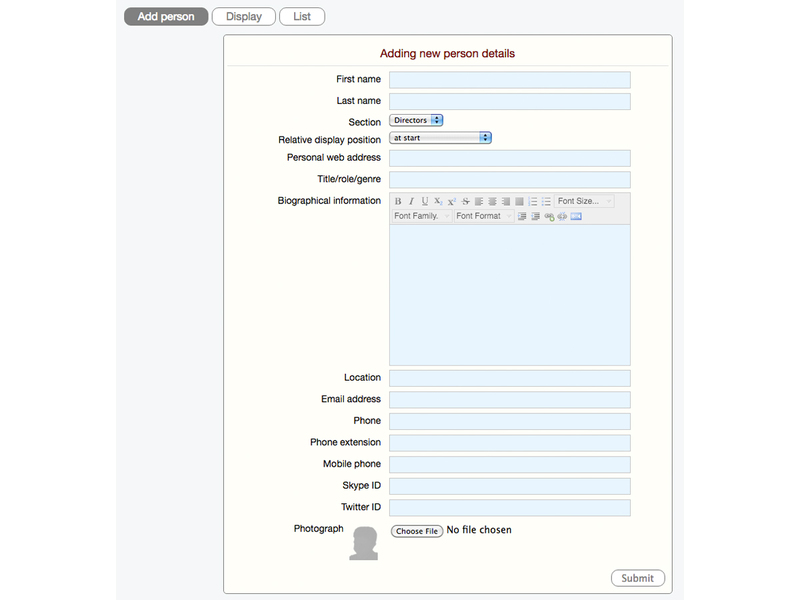
- name, role, biographical information, location, email address, phone, Twitter and Skype handles can be provided
- use the Choose file option to upload a photo
- if multiple persons sections available, select the section the photo should appear
- decide on the relative position on the page of the person being added
properties—displays properties, ability to set your own search criteria to help users find what they want
Example—properties
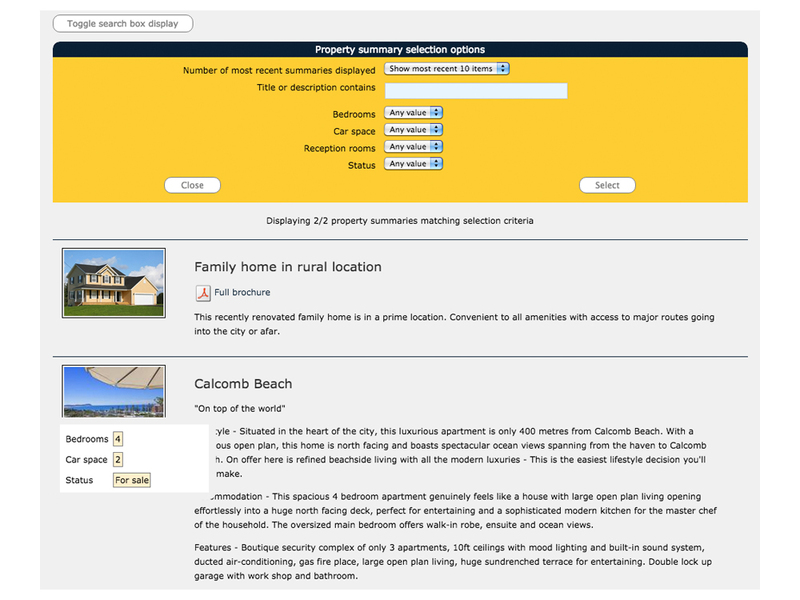
- customised search displayed
- views each property—title and description
- hovering over title displays a synopsis of the property details
- document added with a property is available to download and view
Property descriptors and their values
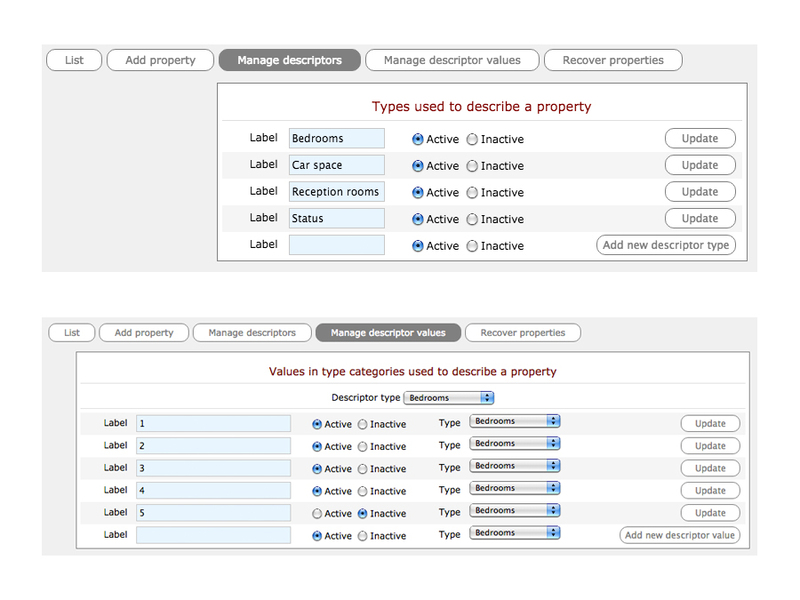
- to set up the search criteria, use Manage descriptors to define the descriptor types most suited to the properties
- use Manage descriptors values to add values to each of the descriptor types
- these appear when adding a property and then a user can select when searching
Form to add property details
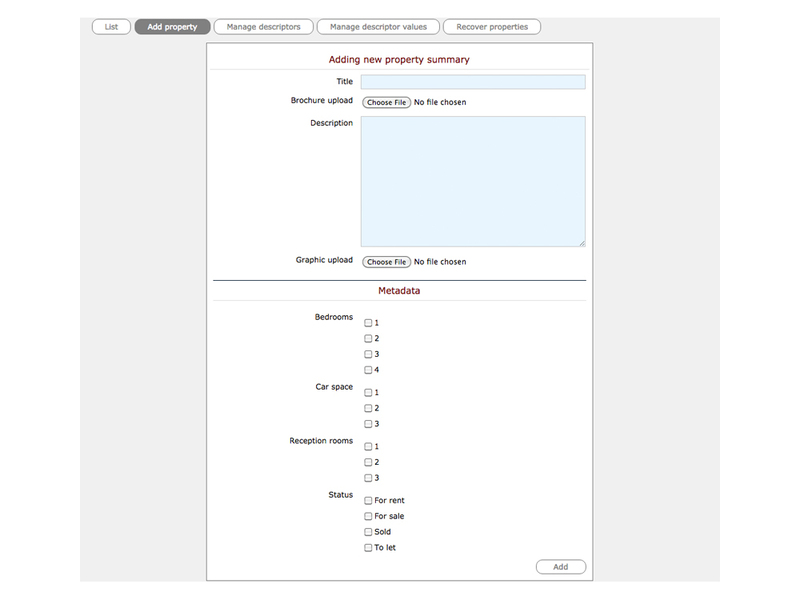
- add a title and description
- if prepared, use the Brochure upload option to upload a PDF document
- upload an image of the property using the Graphic upload option
- select the values for each property in the Metadata
publications—lists documents and images previously uploaded in the site's private document store
Example—publications
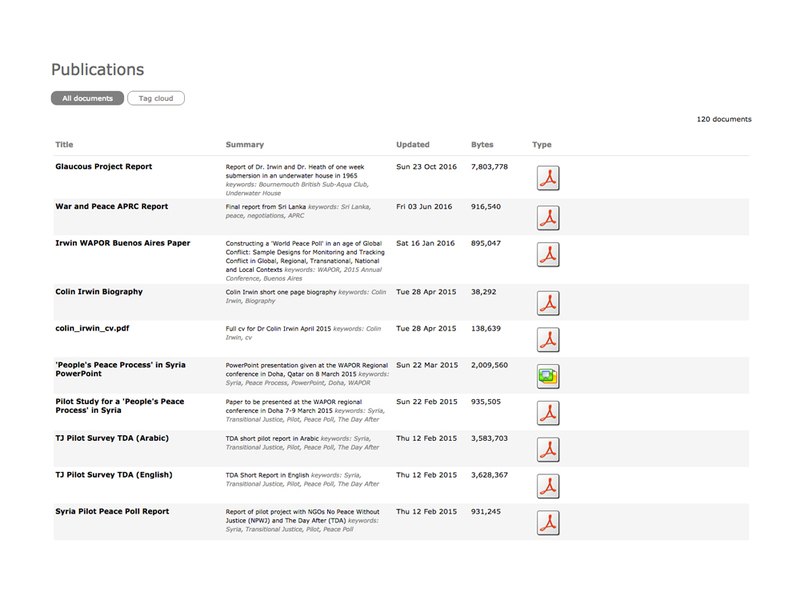
- documents are displayed in a list
- title, summary, date updated, file size and document type icon displayed
- key terms are displayed in tag cloud—documents of same term are listed together
Publish a document into publications
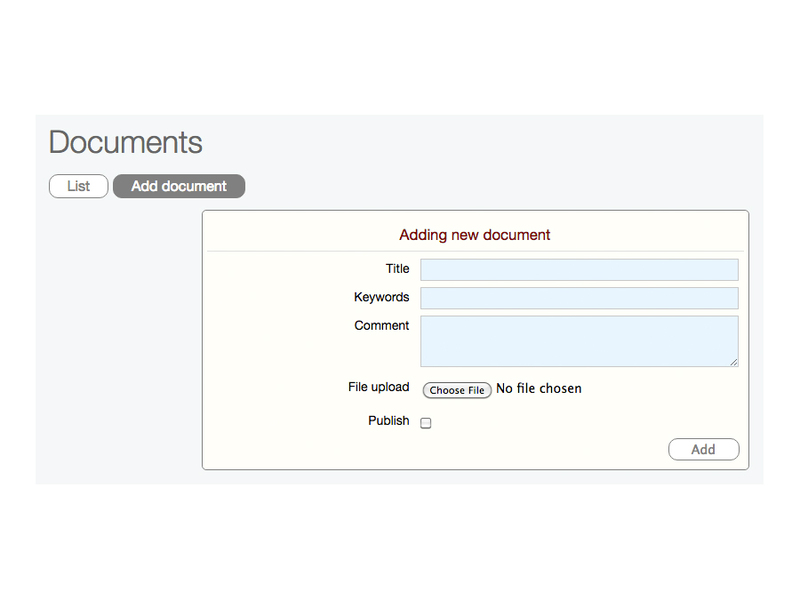
- to add a document, go to Administration > Documents
- add document's title, key terms (associated with its content) and comment
- select Publish checkbox to display in Publications
resources—displays any resources, users can browse through or search using pre-defined criteria
Example—resources
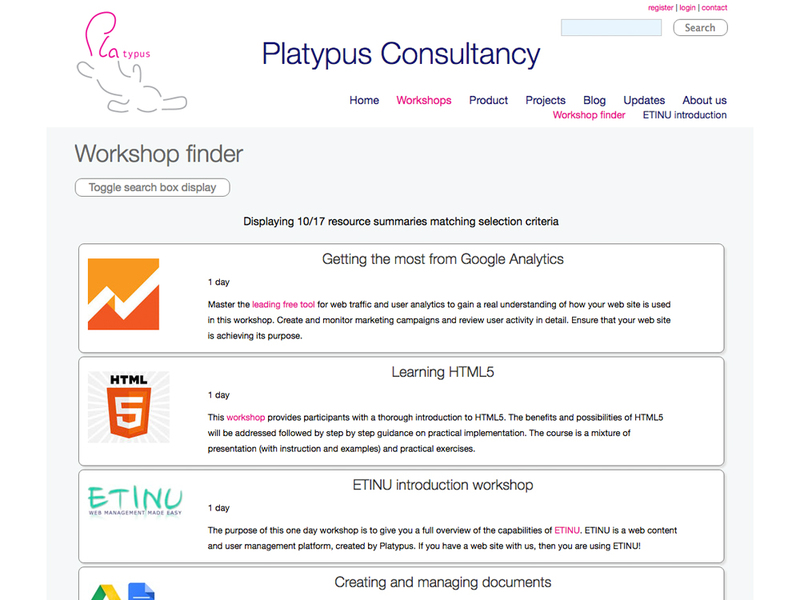
- could be products, services or other resources that an organisation offers
- customised search displayed, by default (though can be removed)
- view each resource—title, description, image, link
- hovering over title displays a synopsis of the resource details
- if document added with resource—available to download and view
Resources descriptors and their values
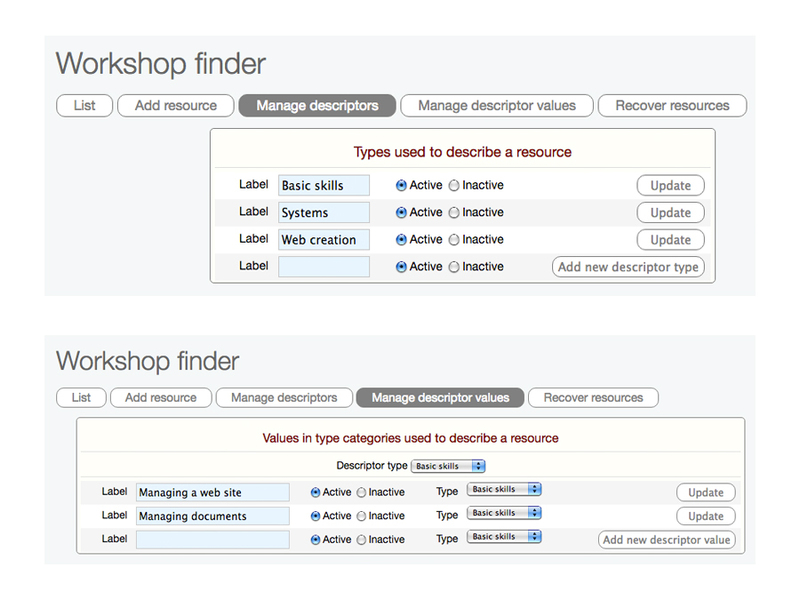
- to set up search criteria, use Manage descriptors to define the descriptor types most suited to the resources
- use Manage descriptors values to add values to each of the descriptor types
- these appear when adding a resource and then a user can select when searching
Form to add a resource
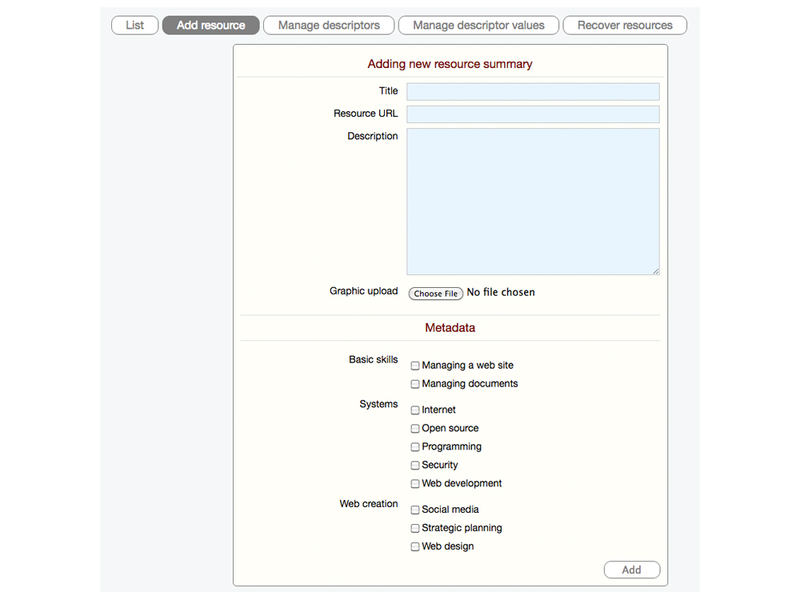
- add a title, brief description and link to more information
- upload an image of the resource using the Graphic upload option
- select the values for each resource in the Metadata
support—a simple contact form for user to make an enquiry
Example—support form
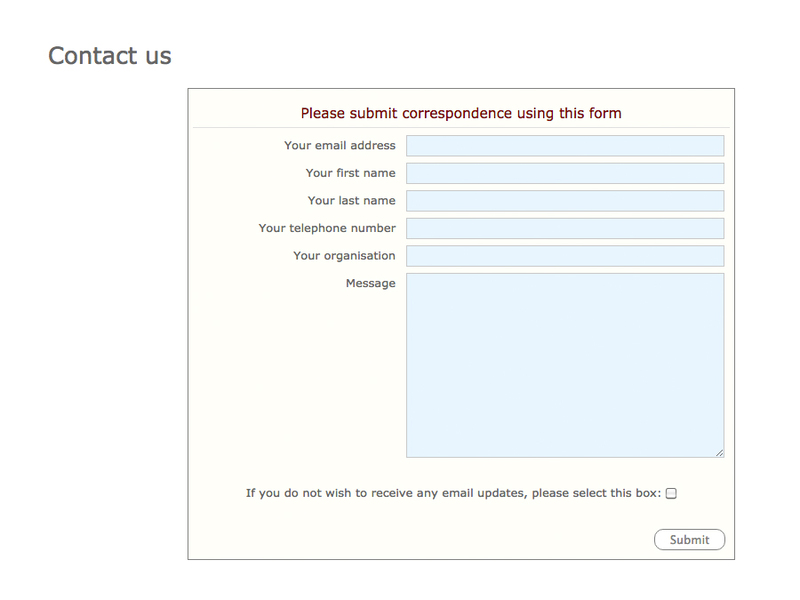
- a simple contact form with default input fields
- form submissions will be emailed to the email address specified in the Administration > Settings > Contact address